
Keeping It Simple in CALL
Andrew Bowman, Intensive English Language Center, Wichita State University, Wichita, Kansas, USA
Although the Principles of Universal Design established themselves in academia over 30 years ago, several aspects remain unresolved in how they apply to teaching English as a second language, especially in the realm of computer-assisted language learning (CALL). Flexibility in use and simple, intuitive design are widely recognized as being crucial by professionals in the field. Likewise, most acknowledge that information should always be perceptible, and that applications must have a high tolerance and not easily ‘break’ on the user. However, despite dramatic improvements in technology, new research, and the heralded potential of artificial intelligence, designers and teachers sometimes fail when creating materials that everyone can use. They forget to keep it simple.
The principles of Universal Design have manifested themselves through the efforts of software developers who have created applications to make information accessible to everyone. A lot of progress has been made to ensure that most web pages and stand-alone computer programs can be used by people who previously could not take advantage of all their features. Unfortunately, these efforts have still fallen short of meeting everyone's needs. Many times, teachers and developers are unaware of the flaws in their work.
This leads us to the question: How do we know if something is accessible and if it adheres to the principles of Universal Design? It might be assumed that major websites or publishers creating materials for students have complied with accessibility mandates, given the legal consequences. But there is no guarantee they have done as much. Although there is no one quick and all-encompassing method to confirm accessibility compliance, we can each do our share without taking on much burden.
Accessibility Checkers: An Overview
One easy way to check for accessibility compliance is to use the built-in tools that major web browsers include. While these cannot detect every flaw or error, they are convenient and provide a first step towards checking for accessibility. For example, Chrome's Lighthouse (Figure 1) is helpful. Both Edge and Firefox have similar tools.
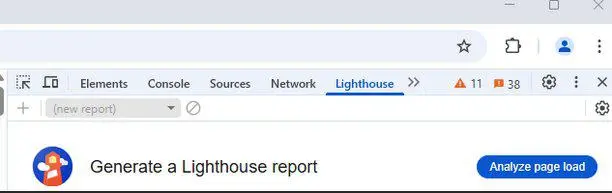
(Figure 1: Chrome Lighthouse report)
Consider using free, lightweight screening applications to detect errors in contrast and structure on web pages. One of the most useful extensions is WAVE (Figure 2), an accessibility checker that can be added to most browsers. This tool produces a clear and easy to read report about the web page in question. It points out errors, and alerts users to potential flaws that indicate possible accessibility compliance problems.
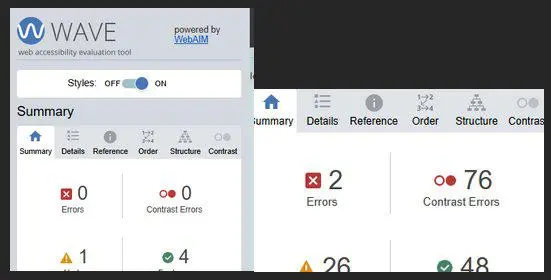
(Figure 2: WAVE report showing alerts and errors.)
Another helpful add-on is the WCAG Contrast checker (Figure 3). This free extension generates a report that not only points out contrast problems, but also shows where font sizes are too small, a common problem.
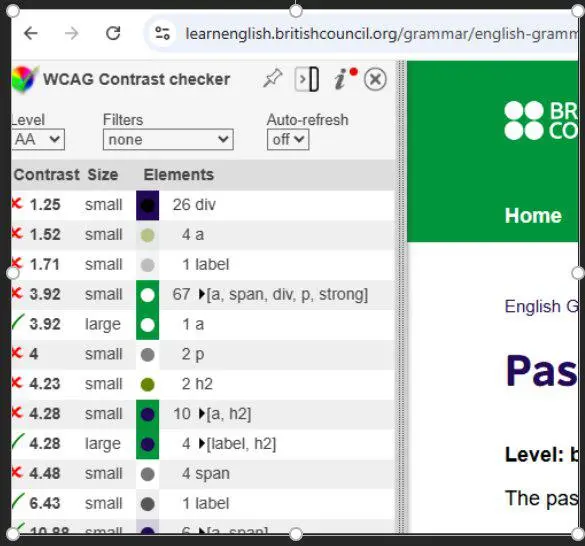
(Figure 3: WCAG report showing font errors.)
The internal accessibility checkers in the major browsers and the extensions are helpful resources, but they cannot change the document’s source and thus require the readers to adjust the page to meet their needs. A common situation would be one in which the person browsing the web page has to use a zooming tool to increase the font size. However, this solution presents a secondary problem: Designers may be unaware of drawbacks or flaws experienced by users if they do not solicit feedback or thoroughly test their pages. They have no reason to enlarge fonts or to include transcripts for audio, etc.
In other words, the real problem begins before the student ever loads the web page. Good design starts with all students in mind, not the skill that is being taught or the gimmick used as a hook. Unless the featured media (e.g. images, audio, or video) is properly presented from the beginning, it probably needs remediation. Again, we need to ask questions. Who is going to use the software? What is the goal? How much time will a student spend on the activity? The answers to these questions will guide a designer to make good lessons that students can quickly figure out and complete at a reasonable pace. This is more successfully achieved when one begins with the Principles of Universal Design instead of backtracking to meet guidelines or addressing problems as afterthoughts.
Suggestions: Shorter is better than longer. Less is the best. Misuse of fonts creates a common accessibility issue on web pages. This usually happens when a designer puts more content on a page than is necessary, resulting in selecting a font which is difficult to read. Another factor to consider with fonts is that non-native English speakers are more likely to skip words in excessively long texts, particularly when fine print or muted fonts are used.
Interaction with a web page is one of the most attractive features of web-based learning. However, too much interaction and frequent changes in types of interaction can confuse students who might not respond as predicted. Easily discernible patterns can prevent this from happening, and students are more likely to stay on task and complete an assignment if they recognize what is expected of them.
Elaborate projects are difficult to correct and remediate, consuming time and resources, especially when multiple contributors focus on distinct aspects of the development process, such as coding, graphics, and pedagogy. Each is responsible for good design and accessibility, not just for their content.
Layered screens and tabs confuse students who must interpret objects and navigate a page. In general, overlapping content creates obstacles for all users, even if these have been coded to comply with accessibility requirements. Even when accessibility issues are addressed, the user's experience may not be optimal if there is too much junk on the screen.
Simple and Sound Design: An Example
The figures below show a web-based assignment in which reading and listening are paired together so that each type of media supports the other. The audio script appears simultaneously with the audio, making the media accessible. Note that the WAVE report (Figures 4 and 5) displays no errors or any significant alerts. Another feature in this activity is that when the listening ends, the reading disappears, thus the experience is the same for students who can see it but cannot hear it and vice versa.
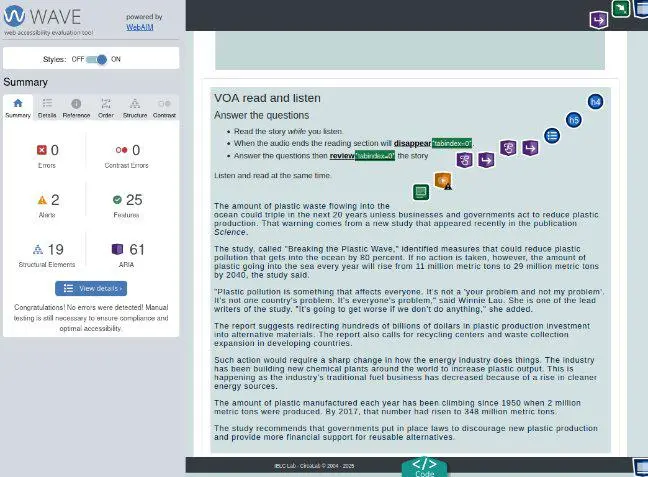
(Figure 4: WAVE report on circalab.com read and listen activity)
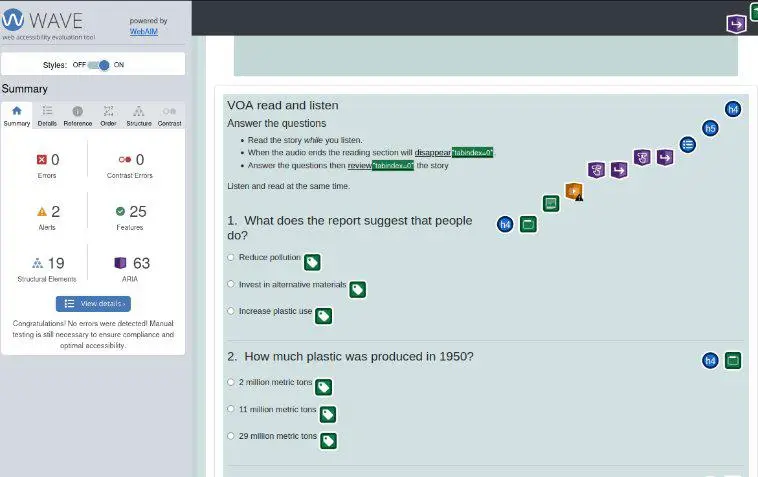
(Figure 5: WAVE question and answer section activity)
The Role of AI
Few doubt the role or the potential of artificial intelligence in language learning for students who have disabilities. AI offers new opportunities for learners, promoting independence, realistic settings, and cost-effective, flexible instruction. However, research and development do not ensure that accessibility standards are met.
It is important to remember that most artificial intelligence datasets are trained using information from populations that may not are fully representative of the whole. Likewise, there is no guarantee that AI-created content meets accessibility guidelines. A recent Norwegian study (2024) observes that, "(w)hile we obtained good results with prototypes based on open-source machine learning models, they have been tested on a limited number of websites....Despite the significant improvement in automation, human verification of the algorithm results is still advisable...” (Fuglerud et al, 459).
Despite advances in technology and the impressive rise of artificial intelligence, teachers cannot rely on software to achieve what socialization and interpersonal communication intrinsically do. Instantaneous feedback and constant media flow require mental processing to decipher input and render it meaningful. As Lisane Bainbridge (1983) observed long ago in her Ironies of Automation, "(t)here will always be a substantial human involvement with automated systems, because criteria other than efficiency are involved, e.g. when the cost of automating some modes of operation is not justified by the value of the product, or because the public will not accept high-risk systems with no human component." Even more reason to keep it simple.
References
Bainbridge, L. (1983). Ironies of automation. Automatica, 19(6), 775–779. https://doi.org/10.1016/0005-1098(83)90046-8
Chemnad, K., & Othman, A. (2024). Digital Accessibility in the era of artificial intelligence—Bibliometric Analysis and systematic review. Frontiers in Artificial Intelligence, 7. https://doi.org/10.3389/frai.2024.1349668
El Morr, C., Singh, D., Sawhney, V., Fernandes, S., El-Lahib, Y., & Gorman, R. (2024). Exploring the intersection of AI and Inclusive Design for people with disabilities. Studies in Health Technology and Informatics. https://doi.org/10.3233/shti240475
Fuglerud, K. S., Halbach, T., Utseth, I., & Waldeland, A. U. (2024). Exploring the use of AI for enhanced accessibility testing of web solutions. Studies in Health Technology and Informatics. https://doi.org/10.3233/shti241041
Andrew Bowman is the Director of the Intensive English Language Center at Wichita State University, and also serves as the Learning Laboratory where he teaches Lab classes and develops ESOL applications for IELC. The language-learning software he develops for IELC classes uses a variety of coding languages, including PHP, MySQL, JavaScript, HTML5, etc. Bowman has served on various committees for TESOL and previously managed its computer expo at the yearly conferences. Prior to coming to WSU, Bowman worked abroad in Paraguay for several years, serving as a Spanish/English interpreter, teaching English at a British Council school, and developing software for language learning.